Validate the Configuration
Generate MapR login credentials post-configuration to enable maprcli command execution, validate cluster setup, and ensure proper permissions for operations.
After completing the configuration, generate the MapR login credentials to enable
the execution of maprcli commands within the session. This ensures that the
cluster configuration is validated, and the necessary permissions are in place for
subsequent
operations.
maprlogin password-maprcli node services \
-nodes edfnode1.ftc.local, edfnode2.ftc.local, edfnode3.ftc.local \
-name apiserver \
-action startAccess the MCS Console
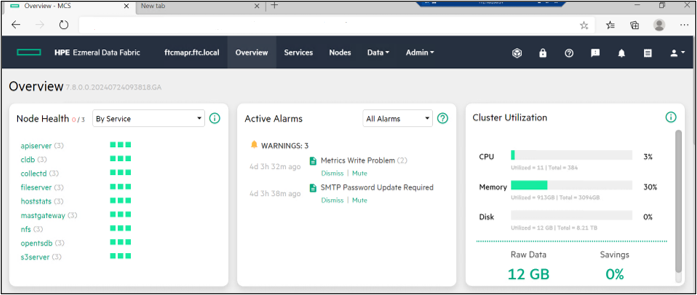
Log in to the MCS Console using any of the node IP addresses or hostnames.
- Open a browser and enter https://<DF_NODE_IP or Hostname>:8443
- Use the Mapr user credentials to log in.
Access the Object Store UI
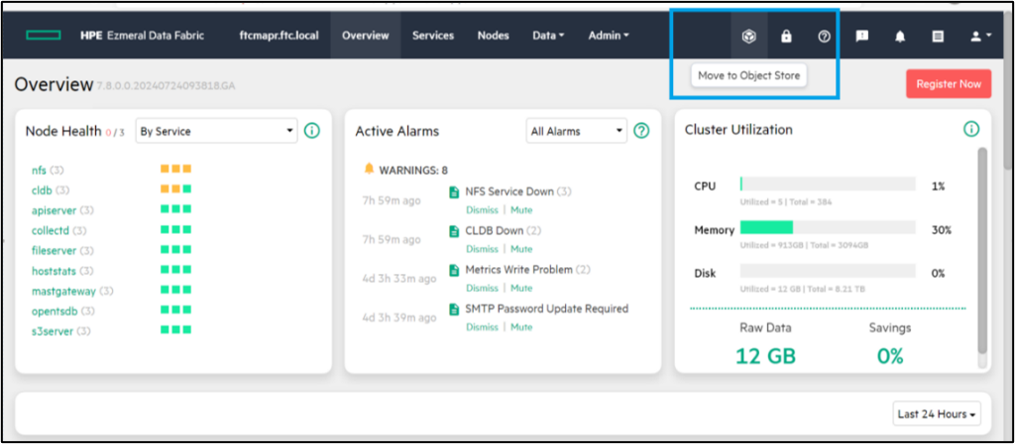
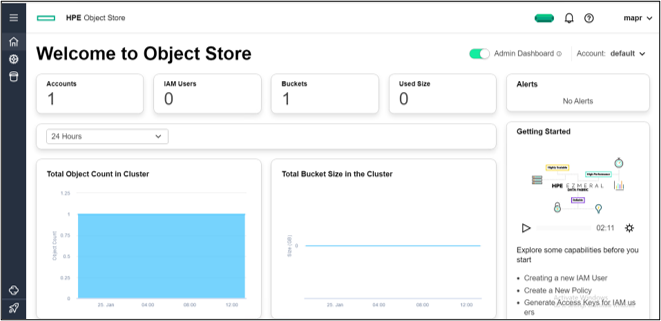
- In the MCS Console, click the Move to Object Store button to access
the Object Store UI.
Back up the CLDB and Master Key
This section describes the process for securely backing up the container location
database (CLDB) and the Master Key. It is essential to perform regular backups to
maintain the availability and security of your cluster environment.
- Enter the following command to check the state of the
CLDB:
maprcli dump cldbstate - Log in to the master CLDB node and make a copy of these directories and
their contents:
- /opt/mapr/conf/tokens
- /opt/mapr/conf
Store a copy of the directories and their configuration files in a remote location for future reference.
Activate the license
Activating the license ensures that all features and functions are available for use
according to the terms of the license agreement.
- From the MCS Console, select Admin > Cluster Settings > Licenses .
- On the Upload License dialog, click Browse File, navigate to the license file on your local host, and then click Submit.
Create a sample volume
This section describes how to create a sample tiering-enabled volume within the
Control System.
- Log in to the Control System and select Data > Volumes.
The Create New Volume pages opens.
- On the Create New Volume page:
- Select the Volume Type.
- Specify values for the required and optional settings, including auditing configurations.
- On the Replication and Storage tab, set the Data Tiering slider to Yes.
- Click Create Volume.
Create an Object Store Bucket
This section describes the steps required to create a bucket using the Object Store
interface.
- Sign in to the Object Store interface as the administrator or as the root user.
- Click the bucket icon in the left pane.
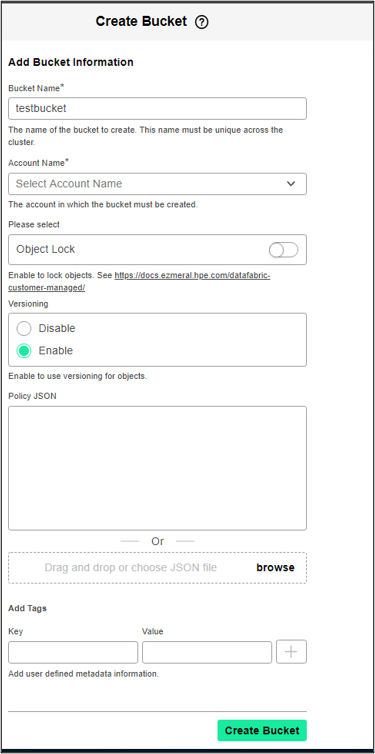
- On the Buckets page, click Create Bucket, enter the required
information, and then click Create Bucket.
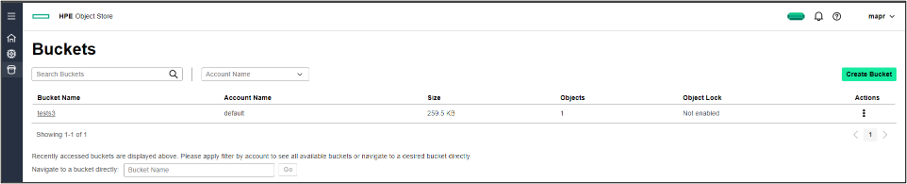
- Sign in to the MCS Console using the designated user credentials, launch the
Object Store Console, and then select Buckets to view the
newly-created bucket.
Delete a Bucket
- Sign in to the Object Store interface as the administrator or as the root user.
- Select the bucket icon in the left pane.
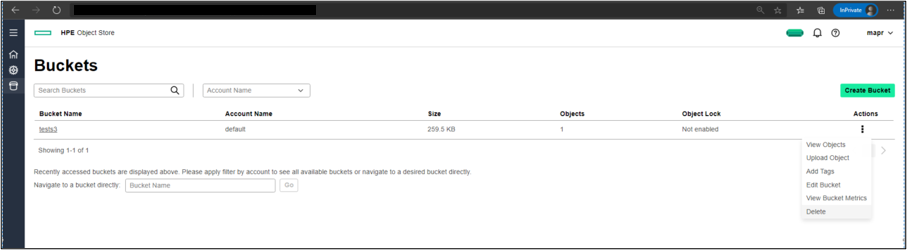
- On the Buckets page, scroll through the list of buckets or enter a name in the Search Buckets field to locate the bucket to delete.
- In the Actions menu for the bucket, select Delete.
- When prompted, confirm the deletion.
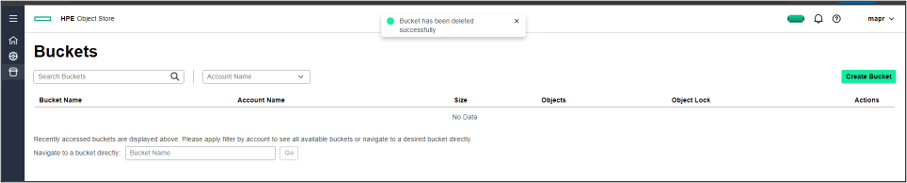
- Sign in to the MCS Console using the designated user credentials, launch the
Object Store Console, and select Buckets to confirm that the bucket
has been deleted.