GPU Support for Ray
Describes how to enable GPU, configure the GPU resources, and disable GPU for Ray.
Sign in as Administrator to HPE Ezmeral Unified Analytics Software to enable GPU to submit GPU-accelerated jobs with Ray.
- Enabling GPU support during HPE Ezmeral Unified Analytics Software installation.
- Enabling GPU support after HPE Ezmeral Unified Analytics Software installation.
Enabling GPU Support During HPE Ezmeral Unified Analytics Software Installation
To enable the GPU for Ray during the HPE Ezmeral Unified Analytics Software installation, see GPU Support.
If you enabled GPU during the platform installation, you do not need to separately enable GPU for Ray. The platform installation automatically enables GPU for all applications and frameworks including Ray.
Enabling GPU Support and Configuring Resources After HPE Ezmeral Unified Analytics Software Installation
> kubectl -n kuberay get pod
NAME                                READY   STATUS    RESTARTS   AGE
kuberay-head-5c2jj                  2/2     Running   0          10m
kuberay-operator-7b976fdb86-x5k4c   1/1     Running   0          10m
The operator pod creates the head pod and monitors the cluster. The head pod is the cluster master and generates additional small worker pods as required.
To enable GPU support for Ray after HPE Ezmeral Unified Analytics Software installation, follow these steps:
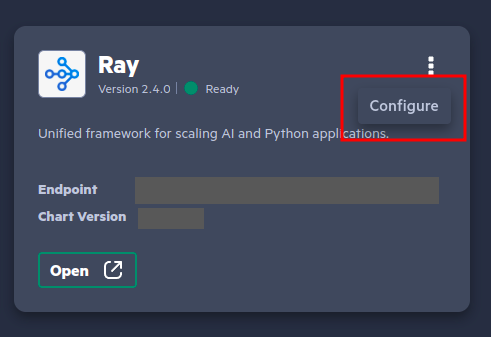
- Click the Tools & Frameworks icon on the left navigation bar. Navigate to the Ray tile under the Data Science tab.
- Click the three dots menu on the Ray tile and click
Configure.
- Set the value of
gpu.enabledtotrue.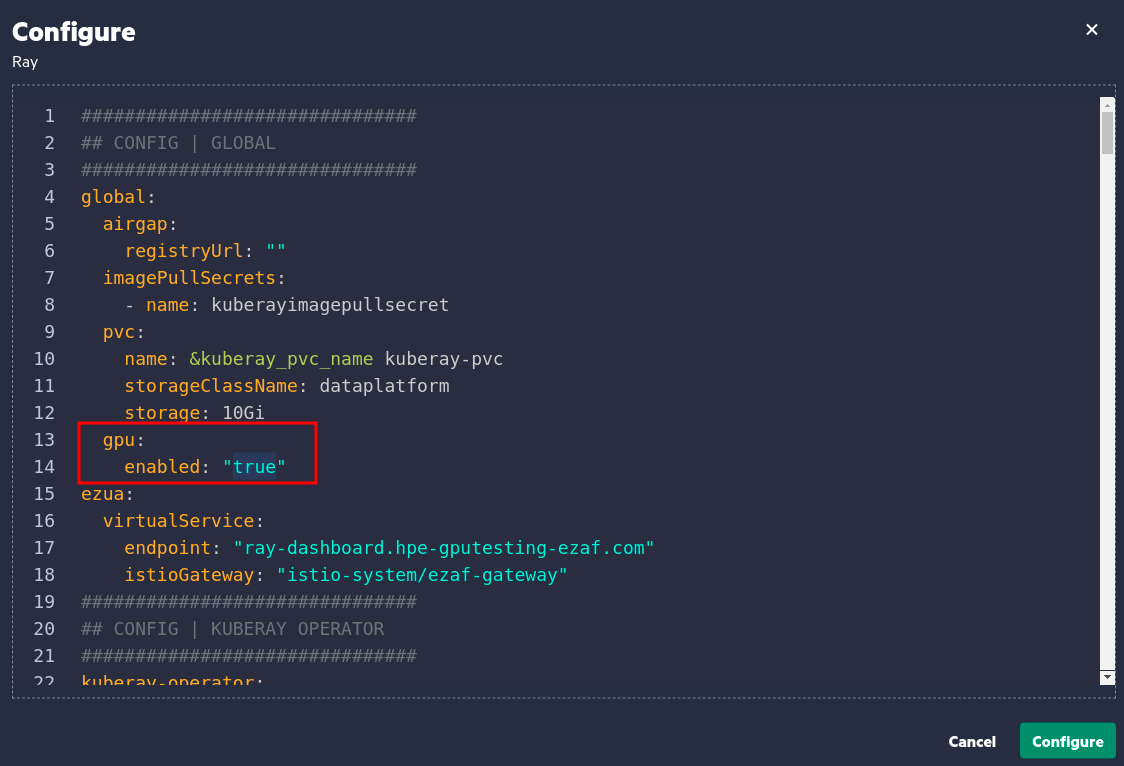
- (Optional) Modify the available resources as required by updating the values within the
resources_gpusection.NOTEWith MIG configuration, only one GPU can be assigned per application. To learn more on what happens when you assign more than one GPU to the Ray cluster, see GPU. For details regarding GPU, see GPU Support.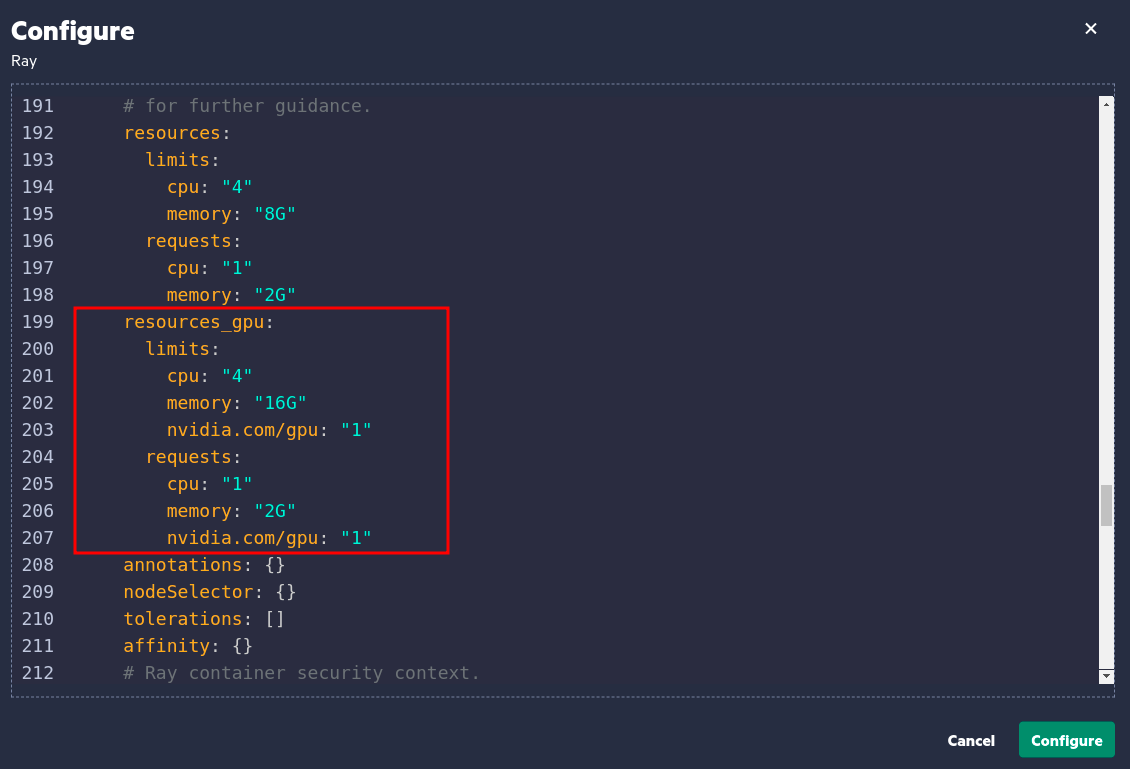
- Click Configure.
Results:
> kubectl -n kuberay get pod
NAME                                READY   STATUS    RESTARTS   AGE
kuberay-head-5c2jj                  2/2     Running   0          10m
kuberay-operator-7b976fdb86-x5k4c   1/1     Running   0          10m
kuberay-worker-smallgroup-xhhbq     1/1     Running   0          10m
kuberay-worker-workergroup-rdptj 1/1 Running 0 13s #New pod with GPU resources!Unlike the worker-smallgroup pod, the worker-workergroup
pod cannot be scaled using an autoscaler. When GPU-accelerated jobs are submitted, the
worker-workergroup pod handles the workload. Simultaneously, Ray manages
regular jobs by using the worker-smallgroup pod.
Submitting GPU-Accelerated Jobs to the Ray Cluster
@ray.remote(num_gpus=1)
def use_gpu():
    print("ray.get_gpu_ids(): {}".format(ray.get_gpu_ids()))
    print("CUDA_VISIBLE_DEVICES: {}".format(os.environ["CUDA_VISIBLE_DEVICES"]))
The function use_gpu does not use any GPUs directly. Instead, Ray
schedules it on a node with at least one GPU and allocates one GPU specifically for its run.
However, it is up to the function to utilize the GPU, which is typically done through an
external library such as TensorFlow.
- Ray example using GPUs for HPE Ezmeral Unified Analytics Software version 1.5.6 and higher:
-
- Submit the Ray job using
JobSubmissionClient:import ray job_id = client.submit_job( entrypoint="python ray-gpu-example.py", runtime_env={ "working_dir": "./", # Add proxy in env_vars if required "env_vars": {} }, entrypoint_num_gpus=1, entrypoint_num_cpus=1 ) print(f"Ray job submitted with job_id: {job_id}") - Wait for Ray to finish the job and print the result:
while True:
    status = client.get_job_status(job_id)
    if status in [ray.job_submission.JobStatus.RUNNING, ray.job_submission.JobStatus.PENDING]:
        time.sleep(5)
    else:
        break
try:
    logs = client.get_job_logs(job_id)
    print(logs)
except RuntimeError as e:
    print(f"Failed to get job logs, please check logs on ray dashboard")
- Submit the Ray job using
- Ray example using GPUs for HPE Ezmeral Unified Analytics Software version 1.5.5 and lower:
-
For this example to work, ensure you have installed GPU version of TensorFlow.
@ray.remote(num_gpus=1) def use_gpu(): import tensorflow as tf # Create a TensorFlow session. TensorFlow will restrict itself to use the # GPUs specified by the CUDA_VISIBLE_DEVICES environment variable. tf.Session()NOTEAs Ray does not have the GPU-specific API, you must properly configure Ray jobs to run on GPU. Without proper configuration, Ray jobs will run on CPUs.When you submit the Ray GPU jobs using TensorFlow 2.15.1, TensorFlow 2.15.1 cannot find the CUDA driver and defaults to using the CPU for the job. This is related to the open-source issue (https://github.com/ray-project/ray/issues/46632).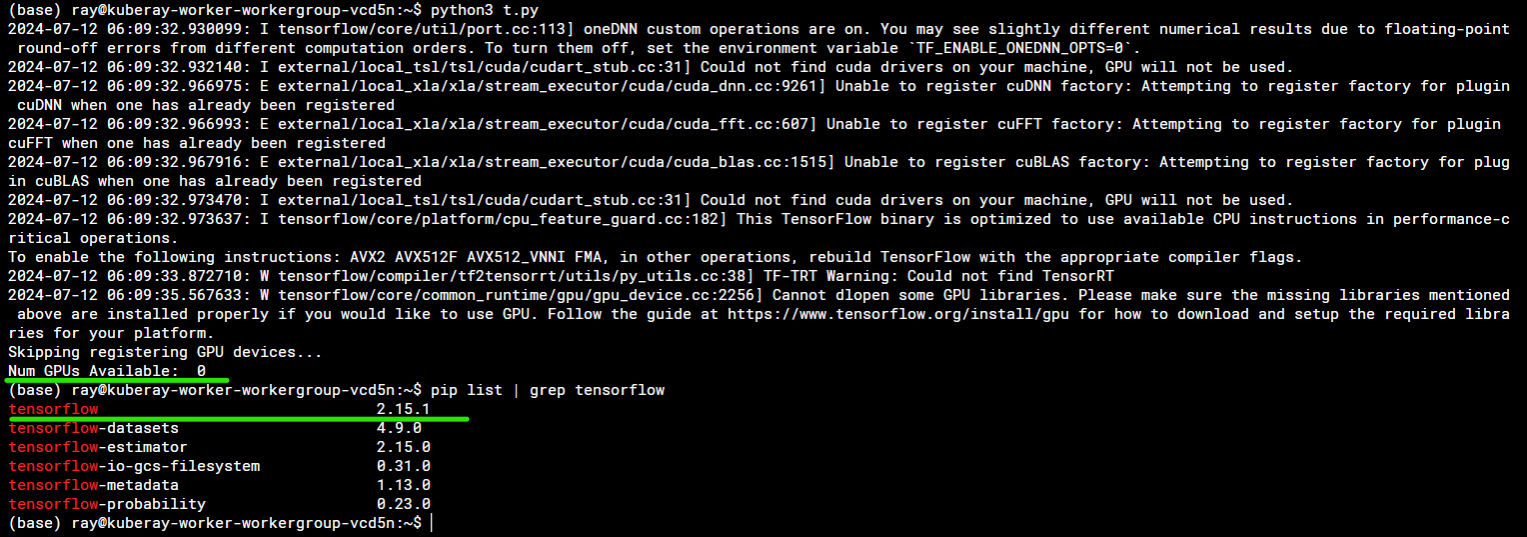 To ensure that Ray jobs run on the GPU, manually update the TensorFlow version to 2.13.0 when submitting Ray GPU jobs.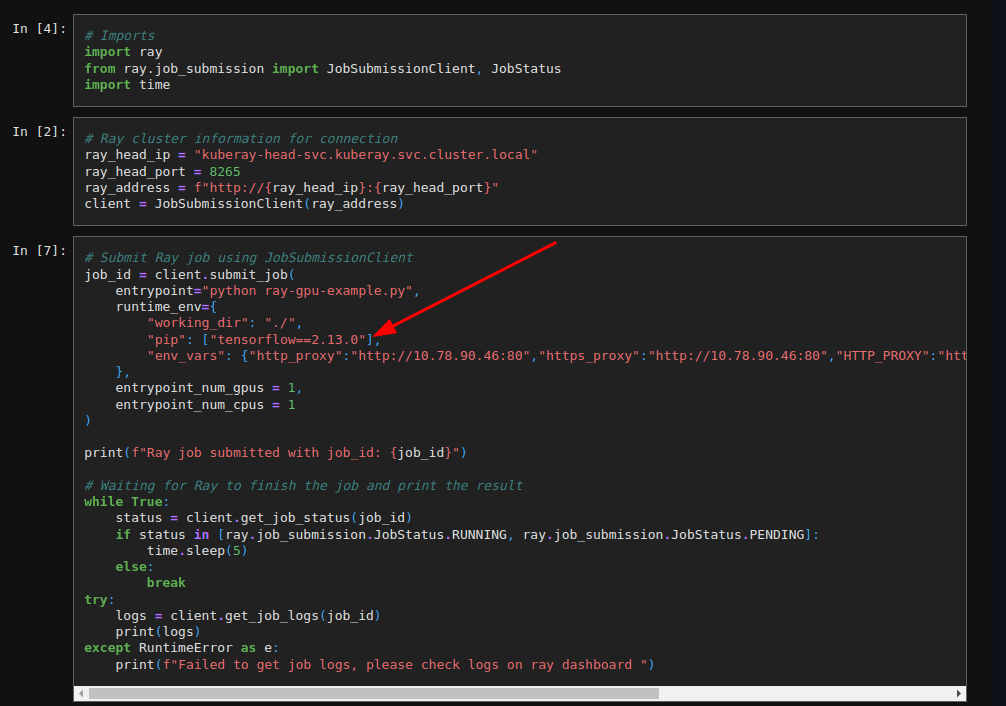
To learn more, see Using Ray with GPUs.
Disabling GPU Support for Ray
To disable GPU support for Ray after HPE Ezmeral Unified Analytics Software installation, follow these steps:
- Click the Tools & Frameworks icon on the left navigation bar. Navigate to the Ray tile under the Data Science tab.
- Click the three dots menu on the Ray tile and click
Configure.
- Set the value of
gpu.enabledtofalse. - Click Configure.